Content Calendar Template For Creators
What a content calendar template for creators should include, how to set it up in Google Sheets or Notion, and a weekly workflow that keeps it working.
Bento Team · November 21, 2026
TL;DR
- A content calendar lists every planned post with its date, platform, format, title and status in one view.
- Good templates add an ideas backlog, content pillars, a repurposing tracker and a shelf of evergreen posts for bad weeks.
- Set your cadence first, schedule ahead, plan pieces one month at a time and update status every week.
Most creators do not run out of ideas. They run out of a system for deciding what goes out next. A content calendar template fixes that by putting every planned post in one place, with a date, a platform and a status, so each morning starts with a plan instead of a blank screen. This guide covers what a good template includes, how to set one up in a spreadsheet or Notion, and a simple weekly workflow that keeps it useful.
What a content calendar actually does
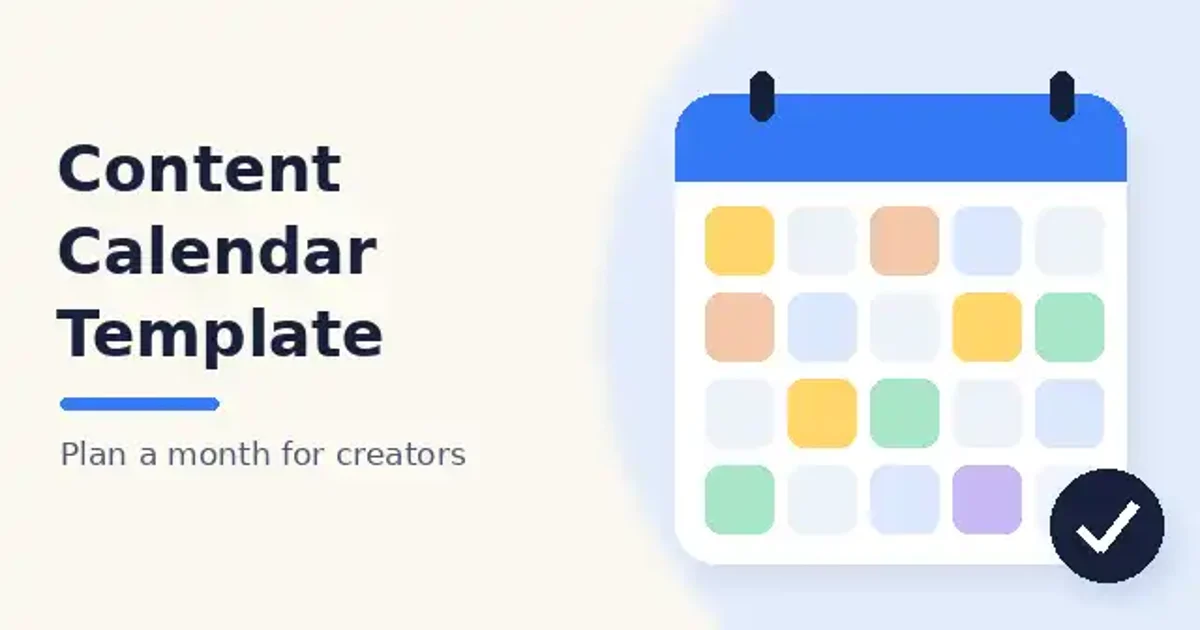
A content calendar is a single sheet listing every piece you plan to publish, with its date, platform, format, working title and status. It replaces scattered notes, voice memos and half remembered ideas, and gives you one view of the whole pipeline. It earns its keep once you publish to more than one channel, because it shows when several Reels are stacked on one day and nothing goes out for the rest of the week.
The bigger payoff is mental. The goal of a content calendar is to remove the decision of what to make, so your creative energy goes into making it well. The tool and the template matter less than the execution.
What to include in your template
A practical spreadsheet template uses one row per post. Chirpy's free version has columns for date, day, platform, format, theme, topic, caption, hashtags, image or video, link, status, owner and notes, with drop-down lists for platform, format and status covering Instagram, Facebook, LinkedIn, TikTok, YouTube, Pinterest and X. It also has a separate Ideas sheet for posts you are not ready to schedule.
CreatorStackClub's template adds a month-at-a-glance planning grid with status, platform, format and owner columns, a repeatable weekly cadence row so you always know what ships next, and a backlog section so ideas do not get lost between posts.
The Creators Network template goes further for creators who repurpose. Alongside a weekly schedule grid it includes an ideas bank, a content pillars reference sheet, a monthly overview for tracking what was planned against what was published, a repurposing tracker and an emergency content shelf for the weeks when everything falls apart.
| Section | What it is for |
|---|---|
| Calendar grid | Dates, platforms, formats and status for each planned post |
| Ideas bank or backlog | Somewhere to capture ideas before they are scheduled |
| Content pillars | The few themes you rotate so the month stays balanced |
| Repurposing tracker | Which big pieces have been cut into smaller posts |
| Emergency shelf | Evergreen posts ready for weeks when plans collapse |
Setting it up in Google Sheets or Notion
If you use Google Sheets, you can download an Excel template, then choose File and Import in Sheets and upload it as a new spreadsheet. In Chirpy's version you type your start date in one cell and the dates and days fill in, then you add a row per post and extra rows for days with more than one post.
If you prefer Notion, Creators Network suggests a database with these properties: Name, Platform, Format, Pillar, Status with Idea, Draft, Scheduled and Posted options, Publish Date, Hook, CTA Type, Notes and Link. Add a calendar view filtered by Publish Date and you have a Notion content calendar. It estimates about fifteen minutes to set up from scratch.
A weekly workflow that keeps the calendar alive
A template only helps if you use it the same way every week. CreatorStackClub's method is a good starting point: set your cadence for each platform first and treat it as your non-negotiable baseline, dump every idea into the backlog without filtering, schedule the strongest ideas at least two weeks ahead so production never blocks publishing, and update the status column each week while moving anything that is stuck.
Moonb adds a useful rhythm on top. Plan themes and key dates for the year, but fill in the actual pieces one month at a time, because plans further out go stale. Start each month from one big piece, such as an article or video, and cut it into posts, clips and an email. Give every piece a goal and an owner, and move the status along every Friday.
- Set your weekly cadence for each platform before adding any posts.
- Fill the fixed dates first, such as launches, events and holidays.
- Pick a small set of themes and rotate them across the month.
- Pull the strongest ideas from your backlog into the calendar grid.
- Write the topic or hook first and the caption later.
- Move each post's status along as you work so anyone can see what is ready.
- Leave a few open slots for things that happen during the month.
Chirpy's tips line up with this list: rotate three to five themes so the month does not lean on one kind of post, write the topic first because a strong hook is easier to judge in one line, fill the fixed dates first, and leave a few gaps for things that happen during the month.
How many posts to plan
Plan as many posts as you can make well and on time. Moonb notes that most teams do better with three solid pieces a week than with seven rushed ones, and a yearly tab shows what you actually shipped.
Keep your own context in mind too. What works for a fitness creator posting daily is not what works for a consultant posting three times a week, so treat any template as a starting point.
Plan for the weeks when it breaks
Every content calendar breaks down eventually. The creators who stay consistent have a recovery protocol: three to five evergreen pieces ready to post at any time. When a week collapses, post one, reset the calendar and move on without treating the missed week as a catastrophe.
When a spreadsheet stops being enough
A spreadsheet plans posts but does not publish them, which is where a scheduler comes in. The calendar decides the dates and a scheduler enforces them.
Where Bento fits
Your calendar decides what goes out, but every post still needs somewhere to send people. With Bento you can keep your links, latest content and products on one page, so the followers your planned posts bring in can find everything in one place. Pair a simple calendar with a single page that stays up to date and each scheduled post has a clear next step for your audience.